Enable AI Security for Apps & Label Endpoints
Introduction
In this module, you will enable AI Security for Apps and the Cloudflare Managed Ruleset, then register and label the public endpoints used by the Seven Hills AI Agent. This brings the ecommerce chat and concierge paths under Cloudflare inspection: the WAF addresses conventional web attacks, while AI Security for Apps prepares prompts for AI-specific analysis. This improves visibility to protect customer interactions without changing how shoppers access the agent.
Seven Hills uses two endpoints:
| Endpoint | Format | Purpose |
|---|---|---|
/api/chat | Standard JSON: { "message": "..." } | Main chat endpoint |
/api/concierge | Nested JSON with the prompt at $.assistant_context.shopping_request.customer_prompt | Concierge endpoint |
Architecture Context
Browser -> Cloudflare WAF + AI Security for Apps -> Seven Hills Worker
                                                        |
                                                        +-> /api/chat -> Workers AI
                                                        +-> /api/concierge -> Workers AI
The pre-deployed app is served on your lab domain, <your-slug-lab>.sxplab.com. Its custom domain routes traffic through Cloudflare's Web services stack, so AI Security for Apps can inspect requests.
Configure all security settings in this exercise at the zone level, not the account level.
Steps
1. Enable AI Security for Apps
- Go to dash.cloudflare.com and select your lab zone.
- Navigate to Security > Settings.
- Filter by Web application exploits.
- Find AI Security for Apps and toggle it On.
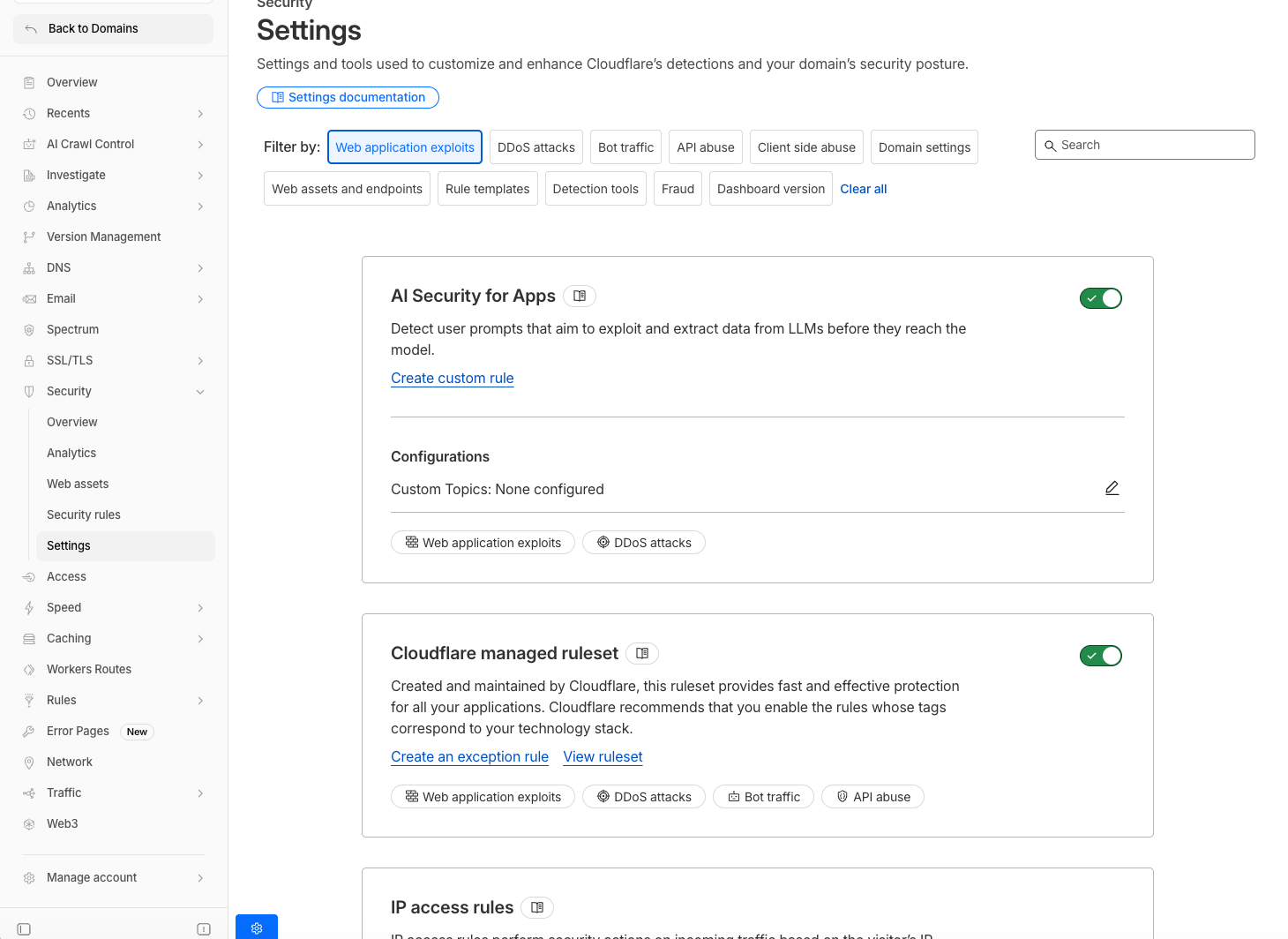
- Enable the Cloudflare Managed Ruleset and keep the default ruleset action and status.
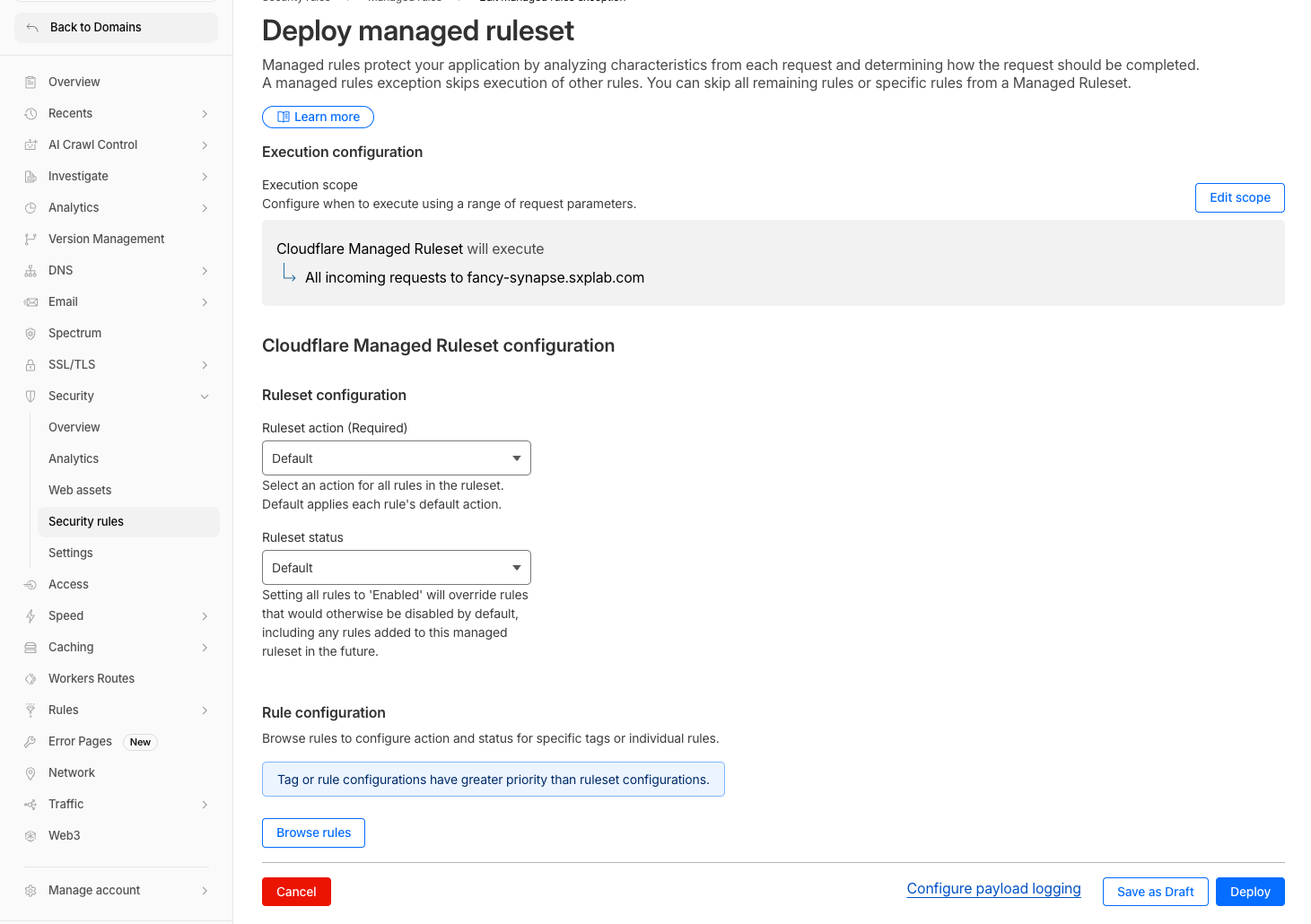
The Managed Ruleset protects against common web attacks such as SQL injection, cross-site scripting, and remote code execution. Together, the Managed Ruleset and AI Security for Apps cover conventional web exploits and AI-specific threats.
Expected Result:
- AI Security for Apps is On.
- The Cloudflare Managed Ruleset is Enabled.
2. Manually Add LLM Endpoints
AI Security for Apps can auto-discover LLM endpoints, but discovery can take some time. Manually create the endpoints for this lab so analysis can begin immediately.
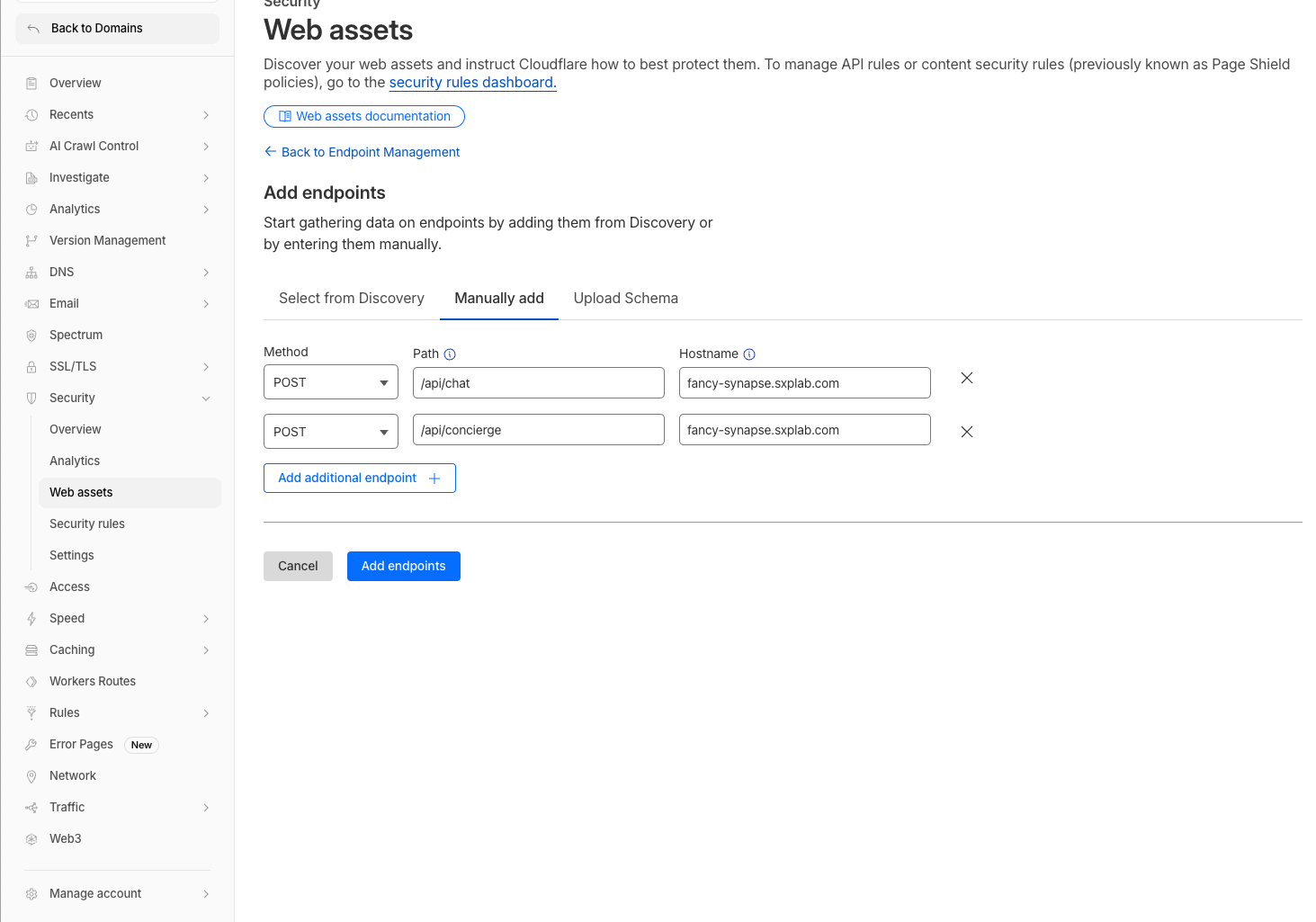
- Navigate to Security > Web Assets.
- Select Add endpoint/operations.
- Add the main chat endpoint:
| Field | Value |
|---|---|
| Path | /api/chat |
| Method | POST |
| Hostname | <your-slug-lab>.sxplab.com |
- Add the concierge endpoint:
| Field | Value |
|---|---|
| Path | /api/concierge |
| Method | POST |
| Hostname | <your-slug-lab>.sxplab.com |
3. Apply the cf-llm Label
- In Security > Web Assets > Endpoints, locate
/api/chat. - Select the Edit cog icon.
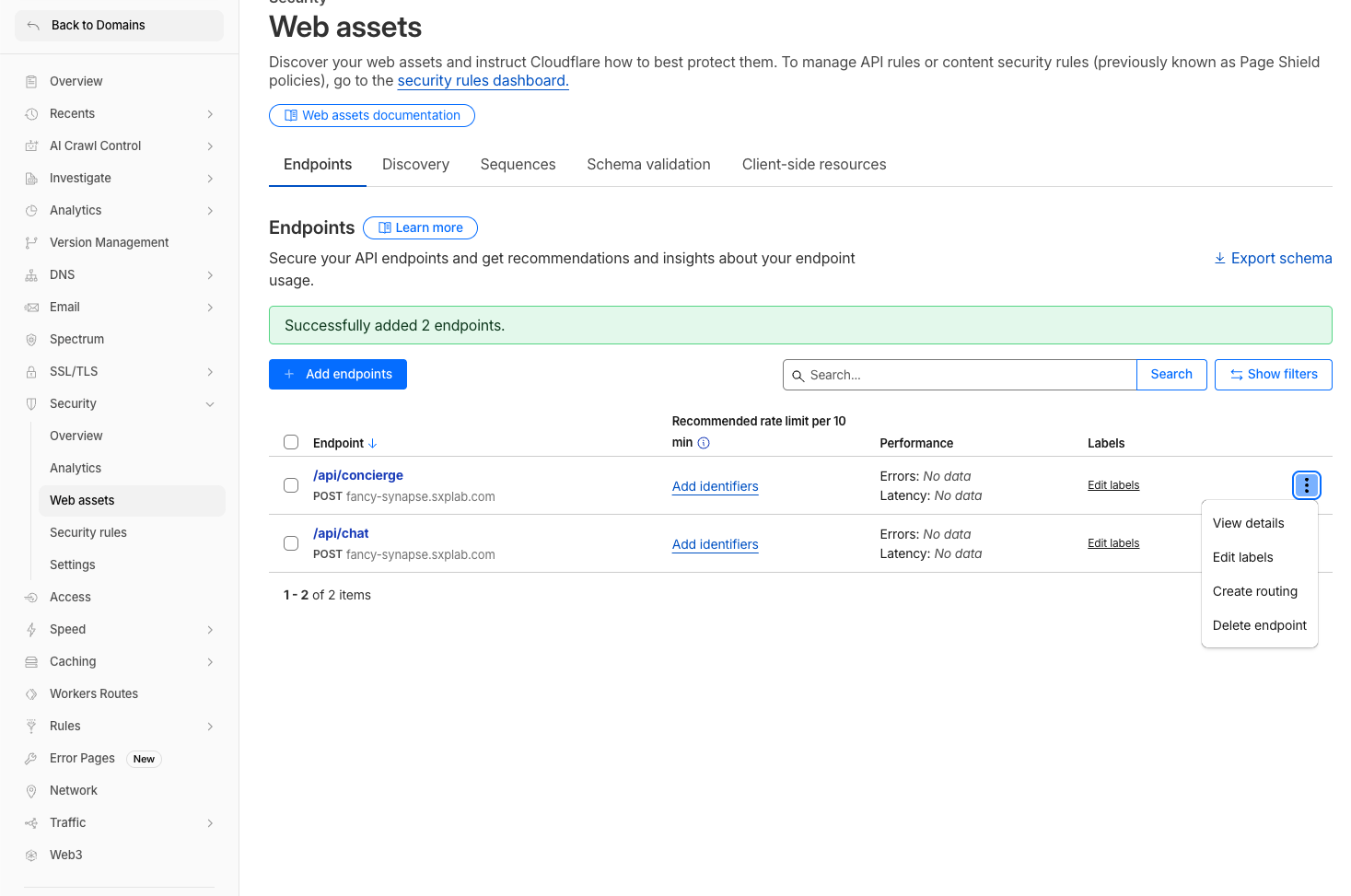
- In Labels, select
cf-llm. - Select Save labels.
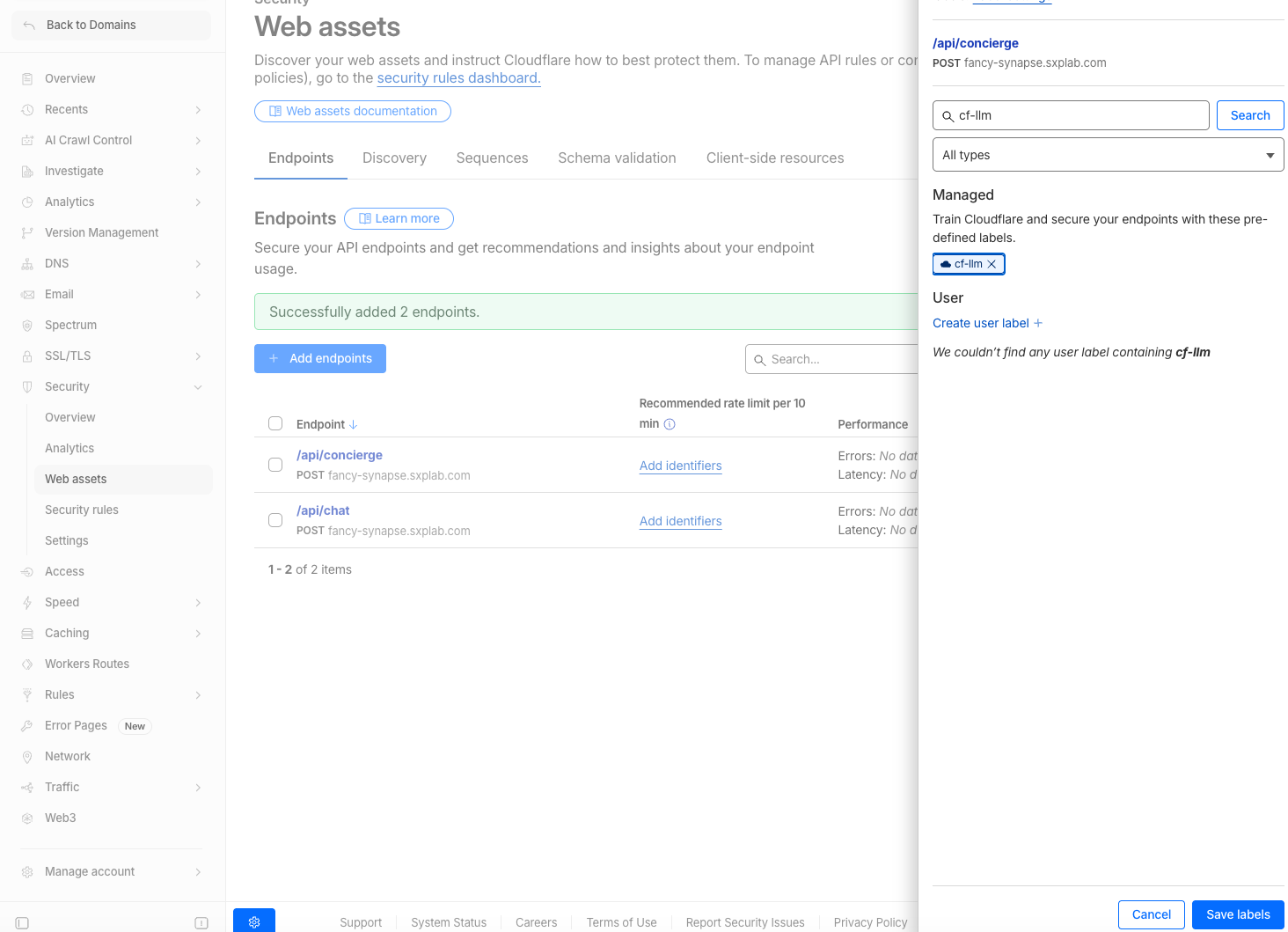
- Repeat these steps for
/api/concierge.
You can also use bulk update to apply a label to multiple endpoints.
4. Verify the Labels
In Security > Web Assets, confirm that:
/api/chathas thecf-llmlabel./api/conciergehas thecf-llmlabel.
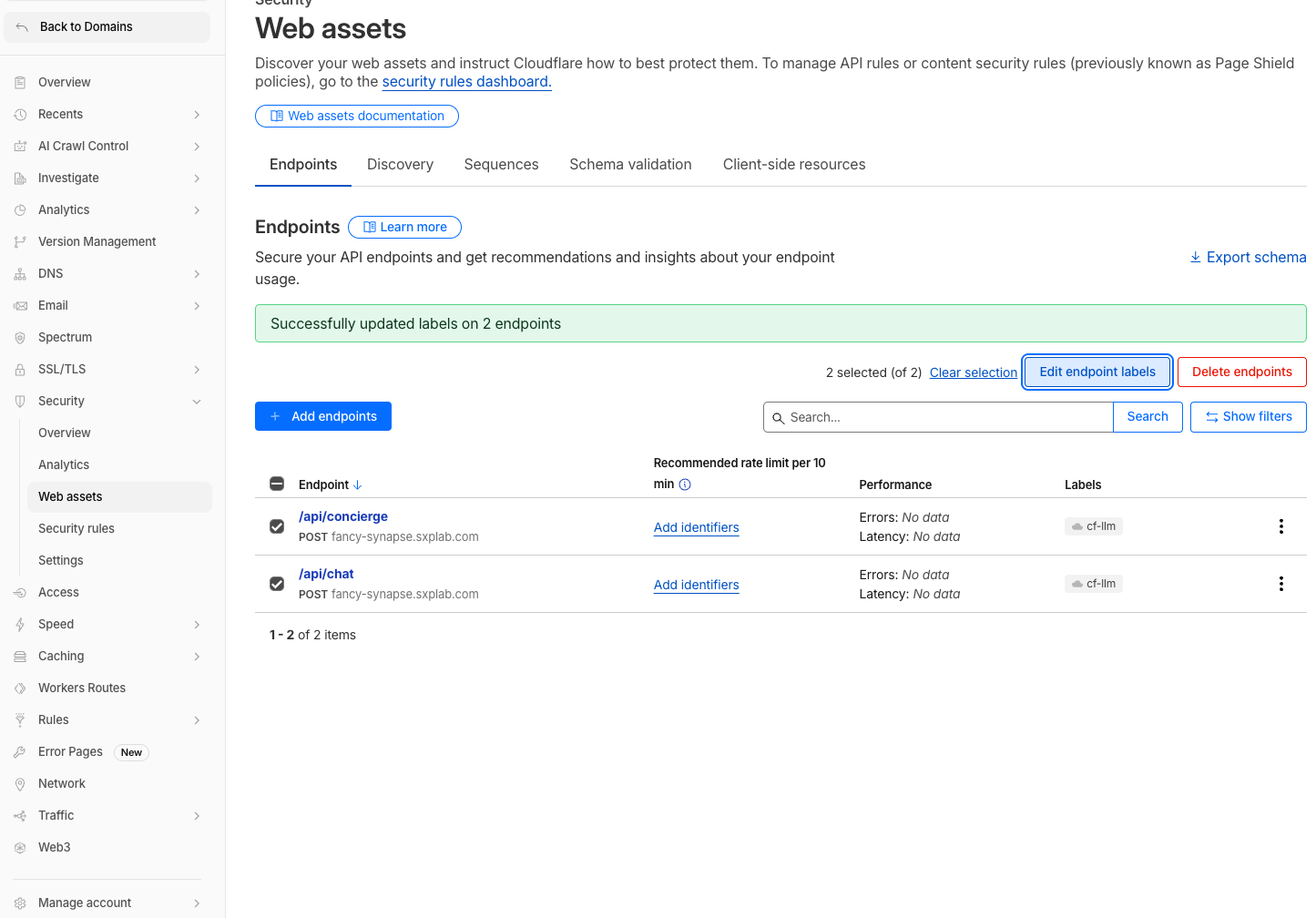
What You Established
You enabled the required protections, added /api/chat and /api/concierge as web assets, applied the cf-llm label, and confirmed that both endpoints are recognized for AI analysis. Cloudflare can now inspect these customer-facing paths for AI risks while legitimate product discovery and shopping assistance continue through the existing ecommerce workflow. This establishes the foundation for the custom detections and mitigations that follow.