Control Cache, Request Rate, and Spend
Introduction
In this module, you will apply AI Gateway caching, rate limiting, and spend limits to model traffic from the Seven Hills AI Agent. You will test each control separately and use AI gateway live logs to distinguish cached responses, request-volume blocks, and budget enforcement.
These controls help an ecommerce business reduce repeated inference costs and contain abusive, unexpected, or runaway model consumption. Trusted request metadata also keeps standard shopping and premium Concierge budgets independent, preserving higher-value services when another workload reaches its limit.
Architecture Diagram
Seven Hills -> Cache -> Rate limit -> Spend limit -> Dynamic route -> Workers AI
                |          |              |
              exact      request        estimated
              match       count           cost
Steps
1. Enable and test cache
- Go to AI > AI Gateway >
seven-hills> Settings. - Enable Cache Responses.
- Set the default TTL to
300seconds. - Save the settings.
Validate the cache with live application traffic:
- Go to AI Gateway >
seven-hills> Logs, then select LIVE. - Open Seven Hills and send
Which headphones are best for travel?in Chat with Sofia three times. Do not change the cart between requests. - Return to the live log stream and confirm the first request is a cache
MISSand the repeated requests are cacheHITentries.

In Logs, confirm the hit has zero model cost and did not run a second inference. For an ecommerce business, caching repeated product questions can serve answers faster while avoiding a new model charge each time; at scale, those avoided inferences translate directly into lower operating costs.
The default cache key includes provider, endpoint, model, provider authorization, and the full request body. A changed prompt, tool list, cart, or model parameter creates a different key.
2. Disable caching
In gateway Settings, turn off Cache Responses and save. This ensures the following requests reach the rate-limiting control instead of being served from cache.
3. Enable and test rate limiting
- In gateway Settings, enable Rate-limiting.
- Configure:
| Field | Value |
|---|---|
| Requests | 1 |
| Time period | 1 hour |
| Method | Sliding |
- Save.
- Go to AI Gateway >
seven-hills> Logs, then select LIVE. - Open Seven Hills and send
Do you sell a portable charger?in Chat with Sofia. Wait for the AI Agent to respond. - Send
Which headphones are best for travel?. - Return to the live log stream and open the two new entries.
Confirm:
- The first request succeeds.
- The second request is blocked because it exceeds the one-request limit.
- The blocked request's gateway log reports Rate limited, internal code
2003, zero inference tokens, and zero model cost.
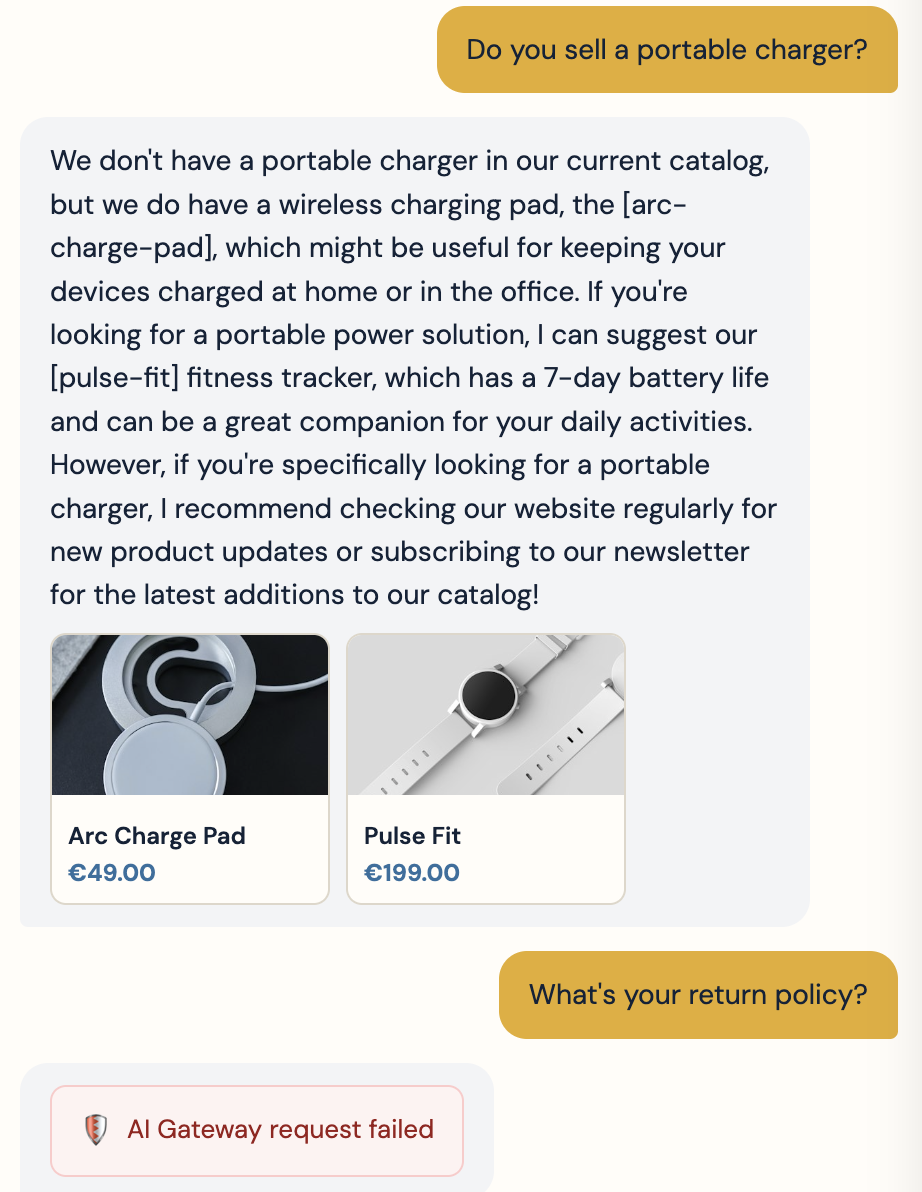
One request per hour is deliberately unreasonable for a shopping assistant, but it makes the control visible immediately. In production, businesses set thresholds from expected traffic so sudden bursts, abusive clients, or runaway applications cannot create uncontrolled model costs while normal customer demand continues to be served at human-rate.
4. Disable rate limiting
Turn Rate-limiting off and save.
5. Create a scoped spend limit
- In AI gateway Settings, find Spend Limits and select Add Rule.
- Configure:
| Field | Value |
|---|---|
| Budget | $1 |
| Time window | 1 hour |
| Window | Sliding |
| Limit by metadata - Metadata key | request_type |
| Dimension mode | Split by key |
- Save the rule.
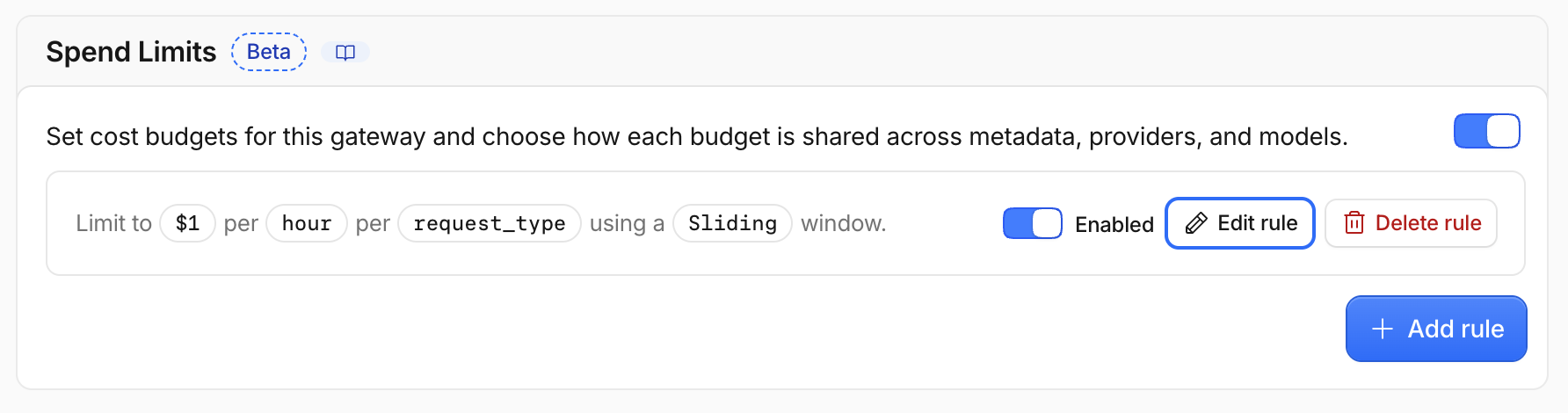
AI Gateway now maintains independent $1 buckets for standard_chat and concierge. If the two use cases need different dollar limits in production, create separate Filter by value rules instead.
request_type is assigned by the Seven Hills Worker, not accepted from the browser. Splitting on this trusted business context lets the gateway cap runaway standard-chat spend without consuming the premium Concierge budget, and vice versa.
6. Test spend before and after the budget is consumed
From your terminal, trigger a customised cost call to trigger cost controls:
curl -s -X POST \
  https://<your-slug-lab>.sxplab.com/api/ai-gateway/probe \
  --header 'Content-Type: application/json' \
  --data '{"case":"spend"}'
The first request should succeed. The lab-only probe uses request_type: standard_chat and applies a fixed custom cost high enough to consume only the standard-chat $1 bucket.
After the first request appears in Logs, run the command again.
Expected after-state:
- The next probe returns
429. - Its gateway log explicitly reports that a spend limit was exceeded.
- A normal AI Agent prompt is blocked because it shares the exhausted
standard_chatbucket. - A Concierge request still succeeds because it has an independent
conciergebucket.

7. Leave a clean state
Confirm rate limiting and caching are off, delete or disable the spend-limit rule. Send one Agent prompt and one Concierge request and confirm both work before continuing.
What You Established
You configured and validated three distinct AI Gateway cost controls. Logs showed a cache hit avoiding another Workers AI inference, a named rate-limit event stopping excess requests, and a spend limit affecting only the standard-chat budget while Concierge remained available. These controls prevent unnecessary or runaway spending on a public facing AI Agent tool.
Checkpoint
You proved the operational controls separately and preserved legitimate traffic. Continue to Enforce Guardrails and DLP.
Troubleshooting
The second cache request is still a MISS
- Confirm Cache Responses is enabled and saved.
- Run the fixed probe rather than manually retyping a prompt.
- Check whether the route or model changed between requests.
The second request is not rate limited
- Confirm caching is off.
- Confirm the limit is one request per hour using Sliding mode.
- Confirm both requests were sent after rate limiting was enabled.
- Check Live logs for two distinct requests and compare their timestamps.
The first request is already rate limited
- A previous request may already occupy the sliding window.
- Open the blocked log and confirm Rate limited with code
2003; this still validates the control. - Confirm no other application shares your assigned gateway.
The spend probe is not blocked
- Wait for the successful cost to appear; spend counters are eventually consistent.
- Confirm metadata key
request_typeand Split by value. - Confirm the probe log contains
request_type: standard_chat. - Confirm the first log displays the custom cost supplied by the fixed probe.
Concierge is also blocked after the standard-chat spend test
- Confirm the rule uses Split by value, not one shared global bucket.
- Confirm the Concierge log contains
request_type: concierge. - Disable the rule to restore service, then rebuild it with the correct metadata key.